 Skip to content

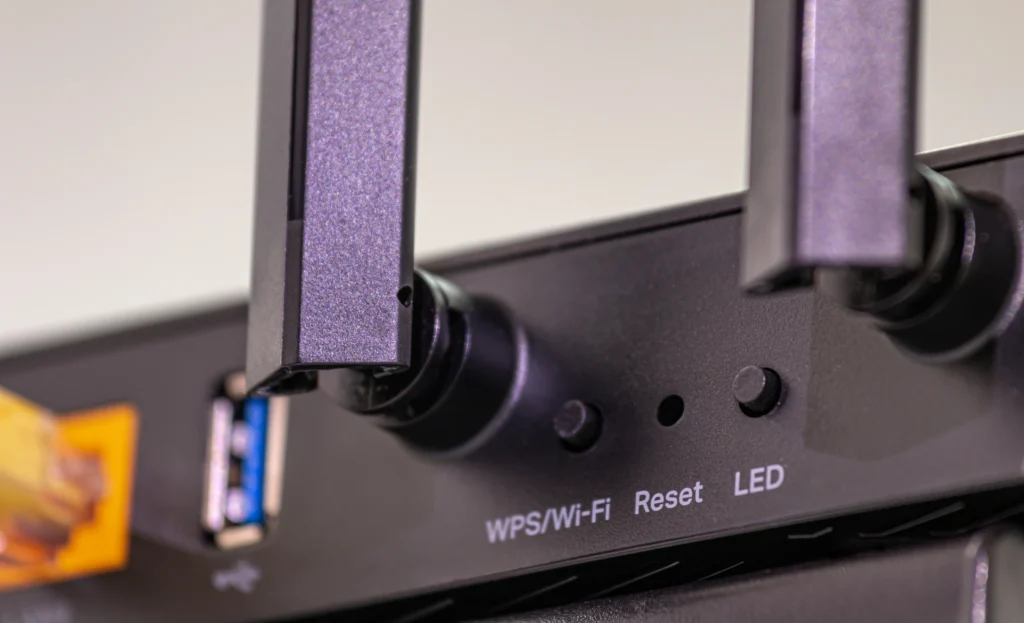
If your internet suddenly slows down, drops connection, or stops working altogether, a spectrum modem reset is often the fastest fix. Whether you’re dealing with buffering, no signal, or unstable Wi-Fi, resetting your equipment can restore normal performance within minutes.
This guide walks you through exactly how to reset your Spectrum router or modem, when to do it, and how to avoid common mistakes, so you can get back online without frustration.
When Should You Reset Your Spectrum Modem or Router?
Before jumping into a reset, it helps to know if it’s actually the right move. A reset is useful when your connection issues are persistent—not just temporary glitches.
Here are common signs you should perform a reset:
- Internet keeps disconnecting randomly
- Wi-Fi is connected but no internet access
- Slow speeds even after restarting devices
- Router lights are blinking abnormally
- You recently changed settings and things stopped working
A reset essentially refreshes your device’s system. There are two types:
- Restart (soft reset): Temporary refresh, keeps your settings
- Factory reset (hard reset): Wipes everything and restores default settings
For most issues, start with a simple restart. Only use a factory reset if problems continue.
How To Perform A Spectrum Modem Reset (Step-by-step)
Let’s go through both methods so you can choose what fits your situation.
1. Quick restart (recommended first)
This is the easiest and safest way to fix most connection problems.
Steps:
- Unplug your modem and router from the power outlet
- Wait for 30–60 seconds
- Plug the modem back in first
- Wait until all lights stabilize (usually 2–3 minutes)
- Plug in the router
- Wait another 2–3 minutes for full connection
This simple spectrum modem reset often resolves:
- Slow speeds
- Temporary outages
- Minor connection drops
Tip: Always restart the modem before the router to avoid sync issues.
2. Factory reset (for persistent problems)
If restarting doesn’t fix the issue, you may need a full reset. This will erase all custom settings, including Wi-Fi name and password.
Steps:
- Locate the reset button on your router or modem (usually a small pinhole)
- Use a paperclip or pin to press and hold the button
- Hold it for 10–15 seconds
- Release when lights start blinking
- Wait for the device to fully reboot (up to 5 minutes)
After this, your device returns to default settings. You’ll need to:
- Reconnect using the default Wi-Fi name/password (found on the device label)
- Reconfigure any custom settings
If you’re using equipment from Spectrum, you can also find default login details on the back of the device.
3. Reset using Spectrum app or web (software method)
If you prefer a more convenient option, you can reset your router digitally.
Steps:
- Open the Spectrum app or log in to your account online
- Go to Services > Internet
- Select your modem/router
- Choose Restart Equipment
- Confirm the action
This method performs a soft reset, similar to unplugging the device—but without the hassle.
Common Mistakes To Avoid
Resetting your modem is simple, but small mistakes can make things worse or delay your connection. Here’s what to watch out for:
- Not waiting long enough
One of the most common issues is rushing the process. After unplugging your modem and router, they need enough time to fully power down and clear temporary data. If you plug them back in too quickly, the reset may not work properly. Always wait at least 30–60 seconds, and give each device a few minutes to fully reboot before checking your connection.
- Resetting too frequently
While a spectrum modem reset can fix many issues, doing it repeatedly without understanding the root cause can hide bigger problems. If your internet keeps dropping daily, the issue could be related to your service line, outdated equipment, or network congestion—not something a reset alone can fix.
- Ignoring the correct restart order
The order in which you power your devices back on matters. Your modem needs to establish a connection with your internet service provider before your router distributes that connection to your devices. If you turn on the router first, it may fail to receive a proper signal, leading to continued connectivity issues.
- Forgetting Wi-Fi credentials after a factory reset
A factory reset wipes all custom settings, including your Wi-Fi name and password. Many users reset their router and then get stuck because they don’t remember the default login details. Before performing a hard reset, it’s a good idea to note down your current settings or check the label on your device for default credentials.
- Pressing the reset button incorrectly
A quick press of the reset button won’t trigger a full factory reset—it usually just restarts the device. To properly reset, you need to press and hold the button for around 10–15 seconds until the indicator lights change. Releasing it too early can result in an incomplete reset, leaving the issue unresolved.
Avoiding these mistakes ensures your spectrum router reset actually works the first time and helps you get your internet back without unnecessary delays.
When should you contact Spectrum support?
If you’ve tried both restart and factory reset and your internet still isn’t working properly, the issue may not be on your end.
Contact support if:
- Internet is completely down for hours
- Router lights indicate signal failure (red or no light)
- Reset doesn’t restore connectivity
- You suspect a service outage in your area
- Equipment seems physically damaged
In such cases, the problem could be:
- Line or signal issues
- Network outages
- Faulty hardware
Spectrum support can run diagnostics remotely or guide you further. In some cases, they may replace your modem or send a technician.
Quick Fix Recap: Get your Internet back on Track
A spectrum modem reset is one of the quickest and most effective ways to fix everyday internet issues. Start with a simple restart, and only move to a factory reset if needed. By following the correct steps—and avoiding common mistakes—you can restore your connection in minutes without unnecessary stress.
If problems persist even after resetting, reaching out to support is the best next step to get your internet fully back on track.